
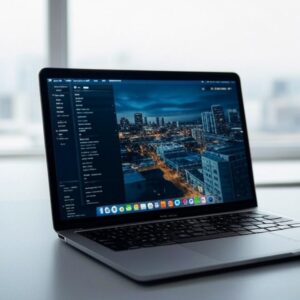
In the ever-evolving world of Apple’s operating systems, macOS Tahoe has sparked intense debate among users and developers alike, particularly over the removal of Launchpad—a feature that has been a staple since its introduction in OS X Lion back in 2011. This grid-based app launcher, reminiscent of iOS home screens, allowed Mac users to organize and access applications with a simple gesture or click. But with Tahoe’s release in late 2025, Apple decided to retire it, replacing it with a new “Apps” interface that integrates more deeply with the ecosystem, including iPhone apps. This shift has left many loyalists scrambling for workarounds, while others embrace the change as a step toward greater productivity.
The decision to axe Launchpad wasn’t made in isolation. According to details from Apple’s WWDC 2025 announcements, macOS Tahoe aimed to streamline the user experience by consolidating app management into a single, searchable panel. This new Apps feature pulls in applications from both the Mac and connected iOS devices, creating a unified list that can be browsed via Spotlight-like search or scrolling. Critics argue this makes the system feel more cluttered, especially for power users who relied on Launchpad’s folder organization and visual layout. As one frustrated user noted in an Apple Community thread, the intermingling of phone and Mac apps has turned app launching into an “endless list of BS,” severely impacting workflow.
Yet, Apple’s move reflects broader trends in software design, prioritizing intelligence and integration over traditional interfaces. Tahoe introduces enhancements like advanced window tiling, a built-in clipboard manager, and AI-driven features that make the Mac feel more capable. The removal of Launchpad aligns with this philosophy, pushing users toward tools like the redesigned Spotlight for faster app access. However, for those who can’t let go, there’s hope: clever hacks and third-party solutions have emerged to mimic or restore Launchpad’s functionality.
Reviving a Classic Interface
If you’re among the die-hards mourning Launchpad, the good news is that it’s possible to approximate its behavior without downgrading your OS. A tip from AppleInsider outlines a straightforward method: open a Finder window, navigate to the Applications folder, and right-click to add it to your Dock. This creates an icon that, when clicked, displays your apps in a grid view—albeit without the full folder support or gesture activation of the original. Interestingly, this workaround persists even if you’ve disabled “Show suggested and recent apps in Dock” in System Settings, though toggling the option might rearrange icons.
For a more robust recreation, users can turn to Terminal commands, though caution is advised. Early betas of Tahoe allowed enthusiasts to re-enable Launchpad via hidden preferences, but as Macworld reports, attempting this in the final release can disable Spotlight and the Apps panel entirely. To recover, a simple restart or reset of preferences usually suffices. More advanced users have explored scripting with tools like AppleScript to build custom launchers that emulate Launchpad’s swipe gestures on trackpads, drawing from community forums where developers share code snippets.
Beyond these built-in tweaks, third-party apps are filling the void. Options like Alfred or Raycast, long favorites among productivity enthusiasts, now include plugins that replicate Launchpad’s visual grid. One Reddit thread on r/mac, where users lamented the change, highlighted how these tools allow for customizable catalogs of apps, preserving the visual memory that made Launchpad so intuitive. As a poster put it, “Why should I memorize the names of hundreds of applications when I can remember where I put them visually?”
User Backlash and Adaptation Strategies
The outcry over Launchpad’s demise has been vocal across social platforms. Posts on X (formerly Twitter) from influencers like Brandon Butch praised Tahoe’s overall redesign but acknowledged the pain point, with one video detailing over 60 new features while noting the “huge update” that finally brings clipboard history and better customization. Another X user, Mukul Sharma, shared that while the OS feels smoother than iOS 26 counterparts, the loss of Launchpad is a “sad” concession amid productive additions like new shortcuts.
This sentiment echoes in broader discussions. A Reddit thread from mid-2025 captured the frustration, with users decrying the alphabetical mess of the new Apps folder and vowing not to update. Some even compared it to Apple’s past controversial decisions, like removing the headphone jack, arguing that visual organization via touchpad gestures was “extremely fast” and essential for certain workflows. Yet, not everyone is resistant; data from user surveys on sites like MacRumors suggest that a significant portion—up to 40% in informal polls—rarely used Launchpad, preferring Spotlight or Dock pinning.
For industry insiders, this shift underscores Apple’s push toward ecosystem convergence. Tahoe’s support for Intel-based Macs is winding down, as detailed in Wikipedia’s entry on the OS, marking it as the last major version for models like the 2019 Mac Pro. This hardware transition encourages software that leverages Apple silicon’s capabilities, such as seamless app syncing across devices. Developers adapting to this might find opportunities in creating Launchpad-like extensions, potentially through the App Store or open-source repositories.
Technical Workarounds and Risks
Diving deeper into restoration techniques, let’s explore the Dock method in detail. After adding the Applications folder to your Dock, you can customize its display by right-clicking the icon and selecting “Show as Grid” or “List.” This doesn’t fully restore folders, but you can create aliases within Finder to group apps manually. For gesture enthusiasts, enabling trackpad swipes via System Settings > Trackpad > More Gestures can approximate Launchpad’s pinch-to-open, though it now defaults to the Apps panel.
Terminal aficionados might experiment with defaults write commands to tweak hidden preferences. For instance, entering “defaults write com.apple.dock ResetLaunchPad -bool true; killall Dock” in Terminal resets the Dock and can sometimes reveal legacy behaviors, but as WIRED warns, this risks instability in Tahoe’s official build. If things go awry, booting into Recovery Mode and reinstalling the OS without data loss is a safe bet, per Apple’s support guidelines.
Security considerations are paramount here. Tahoe’s updates, including the recent 26.3 beta tested for background security improvements as reported by MacRumors, emphasize stability. Tampering with system files could expose vulnerabilities, so insiders recommend backing up via Time Machine before experimenting. Moreover, with Apple’s bounty program shifting focus to iPhone threats, Mac exploits might receive less attention, making unofficial mods riskier.
Broader Implications for Productivity
Looking at the bigger picture, Launchpad’s removal fits into Tahoe’s productivity overhaul. Features like the new clipboard manager allow users to access a history of copied items, reducing the need for repetitive actions. Window tiling, inspired by competitors like Windows, enables drag-and-snap arrangements, which could compensate for Launchpad’s organizational role by keeping apps in view.
User adaptation stories abound. On X, posts from tech reviewers like Aaron Zollo highlight how the “whole new look and feel” of Tahoe enhances daily tasks, with videos demonstrating the Apps panel’s search efficiency. In contrast, critics like Lucia Scarlet on X called the replacement “woefully, comically shit,” comparing it unfavorably to a basic Applications folder. This divide reflects a generational split: younger users, accustomed to iOS fluidity, may welcome the change, while veterans pine for macOS’s desktop heritage.
For enterprises, this evolution poses deployment challenges. IT teams managing fleets of Macs must train users on the new interface, potentially integrating tools like Jamf for custom app launchers. As Apple Support notes in its update logs, Tahoe’s patches focus on compatibility, ensuring that even Intel holdouts can run the OS smoothly until support ends.
Ecosystem Integration and Future Prospects
Tahoe’s app management isn’t just about removal; it’s about deeper ties to iOS and iPadOS. The unified Apps view syncs with your iPhone, allowing seamless access to mobile apps on the Mac—a boon for developers testing cross-platform software. This integration, previewed at WWDC 2025 and detailed in Apple’s newsroom, positions the Mac as a hub in Apple’s walled garden.
Looking ahead, rumors from X posts and news outlets suggest future updates might refine the Apps panel, perhaps reintroducing grid folders based on user feedback. For now, those seeking Launchpad’s spirit can combine the Dock trick with apps like LaunchBar, which offers searchable grids and keyboard shortcuts. Developers are already iterating, with open-source projects on GitHub providing Tahoe-specific tweaks.
In professional settings, this change encourages a reevaluation of workflows. Graphic designers, who often used Launchpad for quick creative tool access, might migrate to custom dashboards via tools like BetterTouchTool. Meanwhile, coders appreciate Tahoe’s RDMA over Thunderbolt for faster Mac clusters, as mentioned in recent X discussions, enhancing collaborative environments where app launching speed is critical.
Navigating Change in Apple’s World
Ultimately, the Launchpad saga in macOS Tahoe illustrates Apple’s bold design ethos: innovate or stagnate. While some users, as seen in Austin MacWorks advice, delay upgrades to stick with Sequoia, others dive in, using betas to enable features like background security updates.
For insiders, experimenting with restorations offers a glimpse into macOS’s modifiability, but it’s wise to weigh the trade-offs. As Apple phases out Intel support, future versions may further abstract app launching, perhaps with AR integrations or voice commands.
In the end, whether you’re reviving Launchpad or embracing the new, Tahoe demands adaptation— a testament to Apple’s relentless pursuit of a more intelligent Mac experience.
from WebProNews https://ift.tt/1L0WEHR


No comments:
Post a Comment