Keyword research tools are useful — until they don’t have enough data for your keywords.
You need to select phrases worth targeting. Sure, search engines understand concepts that are semantically connected and don’t just match keywords anymore. But when you write a webpage or design an ad, you still need to know which words to use that will do the best job conveying your concepts to searchers.
Many keyword tools lump variations together, like singulars and plurals. And they may ignore regional differences altogether.
So you may be left in the dark, just guessing.
Enter Google Trends. This surprisingly flexible and free tool can shed light on your keyword research. It gives relative search volume data — helping you choose between close alternatives, discover regional preferences and more.
Here, I’ll show you five ways to use Google Trends to make enlightened SEO keyword choices.
1. Discover Keyword Variations by Region
Your keyword research tool may not show differences in terms across a region or a country. Or it may look like the search volume is too low for you to worry about some keyword candidates. Sometimes that’s true, but sometimes it’s not.
As an example, what should you call something to put on the bed of a truck? If you’re on the East Coast, you’re likely to use the term “truck cap” or “camper shell.”
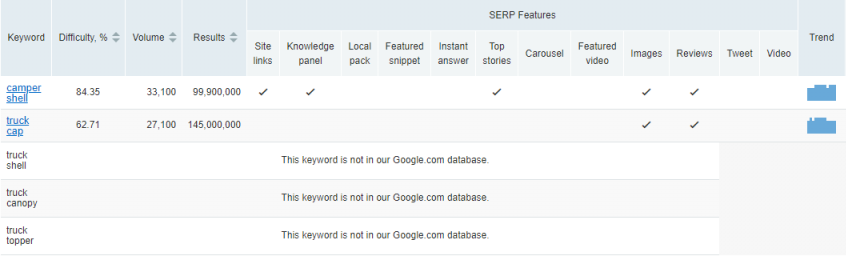
Looking these terms up in SEMrush provides keyword volume data and difficulty scores for the queries. You can also see a few alternative terms. However, there’s little or no information for these variations in a standard keyword tool.
Data from SEMrush provides a good starting place but may not give the full story. (click to enlarge)
As a result, you might be tempted to just write about truck caps and camper shells, and leave it at that.
Don’t stop there! If you enter all of the keyword suggestions you find into Google Trends, you’ll see a bigger picture.
That’s because people in different regions search for different terms. You can look at the chart by subregion to see this clearly.
Google Trends can show terminology differences between regions. You can view any country’s data here. (click to enlarge)
So if your website targets the Pacific Northwest, you’ll want to include truck canopy. And in places like Montana and Illinois, you’ll want to talk about truck topper, too. These make sense for those markets.
Which of those two images would you rather use to make a case for your keyword and content recommendations?
You might wonder why the other keyword tools didn’t show any meaningful data for the alternative search terms. It’s likely because their data is based on nationwide searches. But we know it’s important to speak the language of our customers. So use Google Trends to help find keyword ideas for unique content by region.
2. Spot Changing Trends
Language and search behavior change over time. How can you make sure your content reflects these changes?
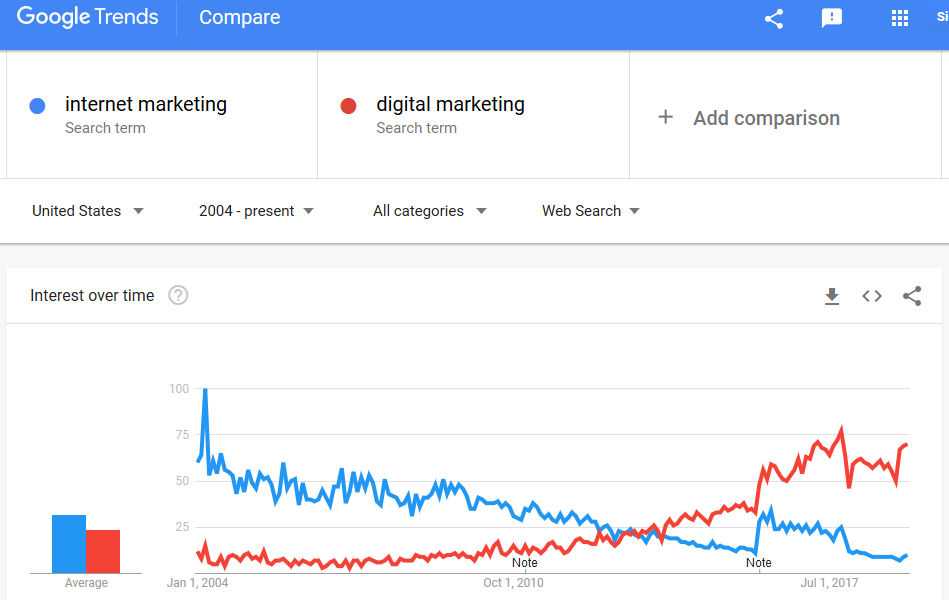
Case in point: We used to call ourselves an “digital marketing” company. Several years ago, Google Trends confirmed that “digital marketing” was declining as a search term. “Digital marketing” was rising. So we updated our site to reflect how people were searching for our services.
Trends let you visualize swings in word usage. (click to enlarge)
By the way, “digital marketing” no longer fits our services as it’s become a very broad term. What we really do is provide great consulting services for “search marketing” (SEO, PPC, content, and social), but we do not do email or CRO or reputation management or PR and so on. So our keywords have evolved again.
Sometimes trends swing quickly and permanently.
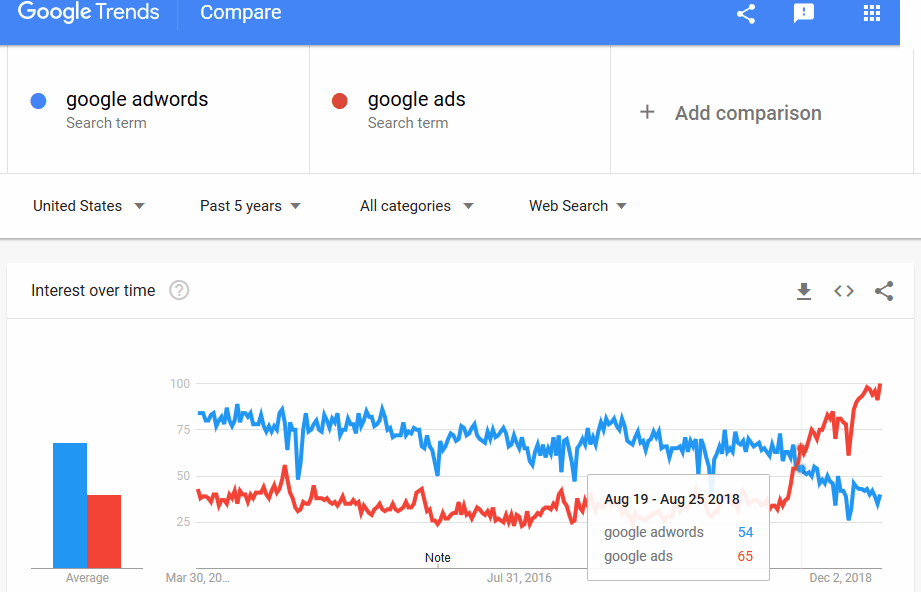
For instance, Google AdWords rebranded to Google Ads in July 2018. A month later, Google Ads had already overtaken Google AdWords in relative search volume – which the trend chart shows.
Language changes can happen quickly. (click to enlarge graph)
Searchers change terms and adapt their searches faster than you (or your boss) might think. So plan to check Google Trends regularly. Watch for competing trends and update your content accordingly.
3. Augment Your Google Analytics
Do you ever notice a big shift in your website analytics data and wonder what’s going on?
There may be times when you don’t have enough historical data to know if your site is seeing an expected change in visits, or if something unusual has happened, maybe in the world at large.
Look in your analytics and Google Search Console data for organic traffic to your landing page for a particular keyword. Also look in Search Console for organic search queries related to your term. Compare this to Google Trends for the same searches, and you can get a more detailed understanding of your site in comparison to larger search trends.
4. Find Spelling Preferences
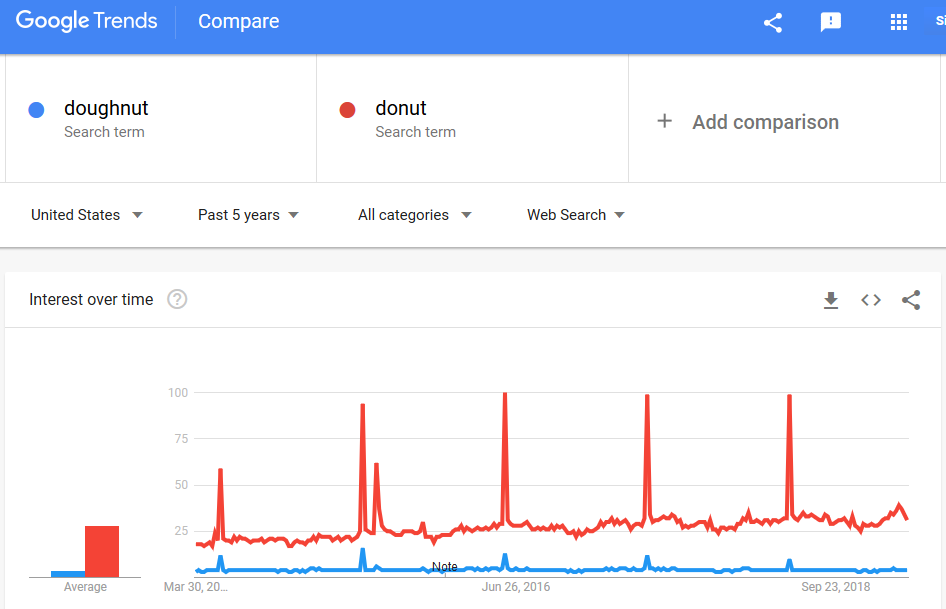
Keyword search volume tools often lump results together. “Donut” and “doughnut” are listed as having the same search volume in SEMrush. Google Keyword Planner won’t even give volume results for the spelling “doughnut” – even though “doughnut” is the preferred spelling by the Associated Press (which guides most blog and newspaper writers).
Data from SEMrush (click to enlarge)
But using Google Trends, you can actually compare spellings to see how much search volume each variation gets.
Use Google Trends to confirm how to spell keywords. (click to enlarge)
More importantly, notice the annual spike in search trends for all these donut-related terms?
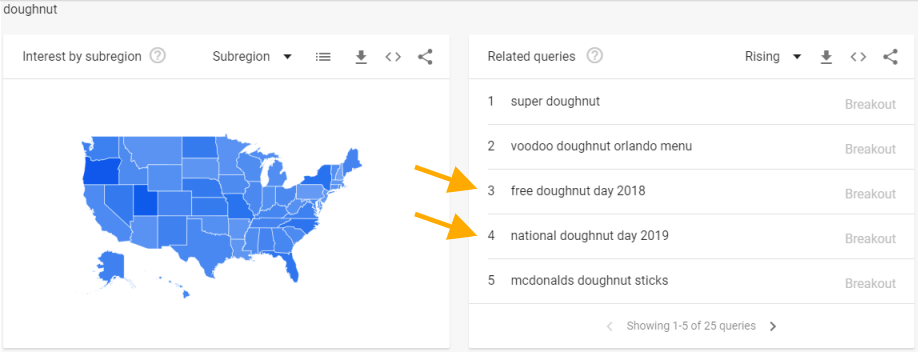
Scroll down to the Related queries section, and you can see searches related to National Donut Day in the U.S. (the first Friday in June). Aha! You have a new content idea for your site’s donut silo.
Related queries can give you clues for content needs. (click to enlarge)
5. See What’s Trending Today
Don’t forget daily and realtime search trends. Google Trends lets you change the length of time for your research to just the past day, past 4 hours, or even the past hour!
When there’s an out-of-season spike in visits to your avocado recipes and your PPC budget for those related terms is spent by lunch, the trending searches can point out the avocado recall announcement and give you terms to add as negatives in your campaigns.
Avoid Data Pitfalls Where Google Trends Messes Up
Google Trends can get confused, however.
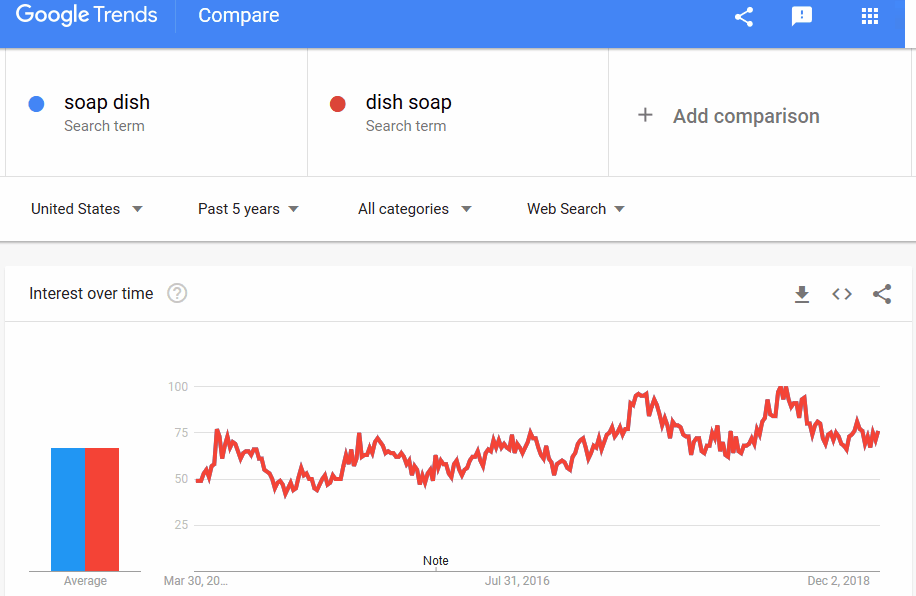
Searching for “dish soap” and “soap dish” shows identical search interest over time (you can’t even see the blue line below the red in the chart below). Yet they are two very different terms, and their results in a Google search are completely different.
On some comparisons, Google Trends can’t tell the difference. (click to enlarge)
Search volume from Ahrefs confirms that there is a difference in the terms, as you would expect:
(click to enlarge)
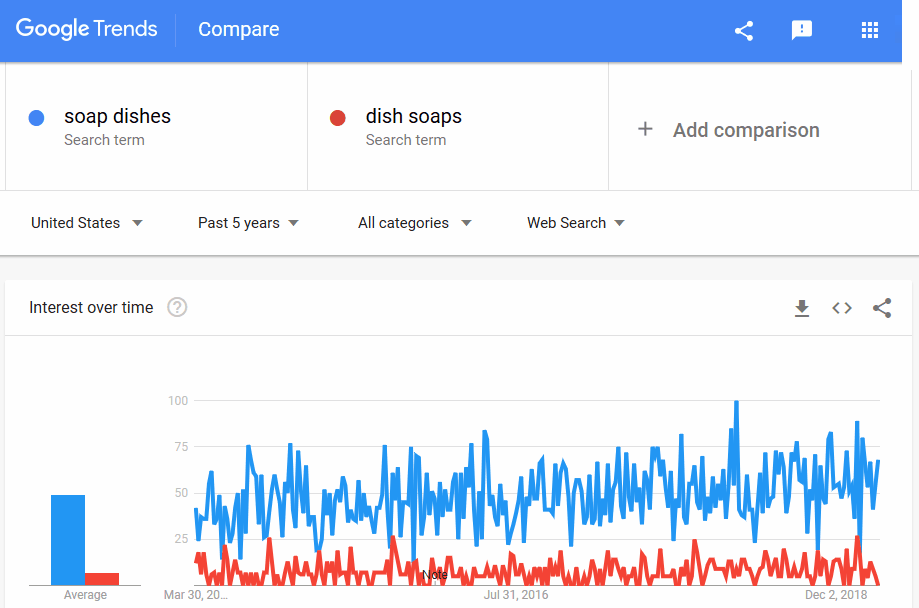
Another workaround for this Google Trends glitch is to use a plural for one or both search terms, when it makes sense.
You can see that the trends for “dish soaps” and “soap dishes” are distinctly different.
Google Trends distinguishes the plural versions. (click to enlarge)
Similarly, “marketing technology” and “technology marketing” also show identical search volumes in Google Trends.
When your common sense tells you that can’t be right, you’ll want to verify with another source. This could be as simple as performing a search in Google. Or you can look at comparison search volumes in another keyword research tool to see if searches really are identical.
Conclusion
Remember, you are not your target market. You might be in your pickup with a truck cap and eating a donut, while your reader is driving around Seattle with a truck canopy and trying to find a doughnut.
Use Google Trends to shed light on your keywords and help you know exactly what you should call things when.
Like this article? Please share it with others who can benefit from these keyword research tips!
Search operators are a prefix or addition to a query in Google or Bing that limits the results set. They work like customizable filters.
The results page you get back provides entirely different results than the average search.
Example 1 “advanced search tips”
One common operation is to use quotation marks (“) to match an exact phrase. So searching for “advanced search tips” (with the quotes) finds only pages that have those words together as a phrase.
Duplicate content is a problem for SEO. So use exact match searches to find any sites that have copied your content.
Why Should I Use a Search Operator?
Search marketing professionals routinely use search operators to filter results from a search engine.
These advanced search skills let you easily:
Locate something specific online
Research a site you’re optimizing
Investigate the competitive field
When you get comfortable with a few of these commands, you can find what you’re looking for much faster.
How Do I Use Advanced Search Operators?
You enter search operators in the search bar along with your regular query, but with some modifications.
Be sure to type the operator next to your query text with no space.
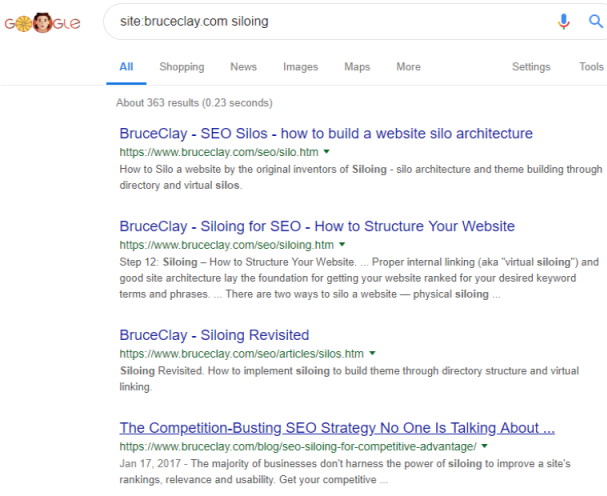
Example 2 site:bruceclay.com siloing
The site: prefix lets you find content within a certain website. In this example, site: tells the search engine you want to browse a particular domain, bruceclay.com is the domain, and siloing is the topic you are interested in finding.
Your results would look something like the screenshot below. Google found 363 pages about siloing on BruceClay.com:
The site: command filters your search results to just one website.
It’s often useful to search for a longer phrase within a particular website. You can combine the operators site: and ” “ such as:
This search found 157 pages. Without the quotation marks, the query would bring back way too many results. The engine would find pages about voice or search — so nearly all the pages on our site!
Bing and Google Search Operator Documentation
Each search engine has its own set of advanced search operators. Here’s the official documentation from the two major search engines for your reference:
List of Advanced Search Operators for SEO (Cheat Sheet)
In the table below, you’ll find the search engine operators that we routinely use in SEO research. (This is not an all-inclusive list.)
Google
Bing
Result
cache:
Shows the version of the webpage from Google’s cache.
contains:
Finds webpages that contain links to a particular type of file (such as pdf, mp3). This function is unique to Bing.
ext:
ext:
Returns only webpages with the file extension you specify (such as htm).
filetype:
filetype:
Finds results of a single type only (such as pdf).
info:
Presents some information that Bing has about a webpage such as related pages from the site, external pages talking about the webpage, and related results.
intext:
Shows pages that contain a specific word in their body text.
intitle:
intitle:
Finds pages that include a specific word as part of the indexed title tag.
allintitle:
Finds pages that include all query words as part of the indexed title tag.
inurl:
Finds pages that include a specific keyword in their indexed URLs.
allinurl:
Finds a specific URL in the search engine’s index. Also can be used to find pages whose URLs contain all the specified words.
related:
related:
Finds webpages that are similar to the specified webpage.
site:
site:
Restricts the search to pages within a particular domain and all its subdomains.
*
*
Acts like a wildcard that can take the place of any word or phrase. Example: tallest * in the world
–
–
Excludes results that contain the word following the minus sign. Place this operation at the end of your search query.
” “
” “
Finds instances of the exact text within the quotation marks everywhere it appears in the search engine’s index.
Search Operators Used in SEO Research
Here I’ll share more ways to use the search commands for SEO research. In the example queries below, the searched phrase is in italics.
Analyze the Competition
Example 3 related:bruceclay.com
The related: operator gives you a glimpse of competitor content.
You’ll see a small selection of what Google considers to be similar. Then you can analyze their SEO metrics — including word count, keyword use, meta data and inbound links — so that you can make your page equal to and then better than its competition.
Example 4 allintitle:seo blog
This query brings up webpages that have both “SEO” and “blog” in their metadata title. We could use this in order to find competing blogs to our own.
The search operators allintitle: and intitle: let you find pages using your keywords in title tags.
Similarly, the commands allinurl: and inurl: let you identify the competition that use keywords in URLs. (Note that as of this writing, the intitle: command works in both Google and Bing searches, but allintitle:, allinurl: and inurl: work only in Google.)
Example 5 cache:https://ift.tt/2HlEJiD
The cache: command shows you a search engine’s cached version of a page. It’s a way to check how the search engine actually sees your page.
Cache shows what page content the search engine considers relevant to retrieve, making this Google search operator a valuable SEO diagnostic tool.
Find Information About a Specific Page or Site
Example 6 info:competitorsite.com
Using the info: command in Bing gives you results that seem like a collection of these advanced search operators. It’s a one-stop shop to access a variety of onsite and offsite results about a website.
Note: Google deprecated the info: operator in 2017.
Discover Indexation Problems
Example 7 site:yourdomain.com
A site: command shows how many pages the search engine has indexed. Though the total number of results is only an approximation, it is a quick way to find out if you have an indexing problem — either too few or too many pages in the index.
Example 8 site:yourdomain.com/blog/*
Specify a particular subfolder of your site to see how many pages it contains. For instance, adding the wildcard * finds all pages under the /blog/.
Help with Site Maintenance
Along with doing SEO research, you can employ advanced search techniques to make site maintenance easier.
Example 9 site:yourdomain.com contains:pdf
The contains: Bing search operator gives you a powerful tool to find links within a site that point to a particular type of file. For example, the query above lets you locate every page on your site that has a link to a PDF file.
Further Refine Results
Example 10 cats -musical
A minus sign (-) before a keyword removes any results with that word. Again, it’s a way to help filter results when a query might otherwise be ambiguous. If you’re looking for info about cats the animal, but there’s a showing of Cats the musical in your town, you can search cats -musical to remove results about the theater production.
Example 11 intitle:keyword -site:yourdomain.com
You can use the minus sign (-) before a search command, too. The above example finds webpages that have your keyword in the title tag, excluding those on your own site. This reduces the clutter when doing competitor research.
Did you like this advanced search operators guide? We’re full of tips for search marketing. (It’s what we do!) Learn more ways to improve your SEO, PPC and overall ROI by subscribing to our blog.
Both searchers and search engines want webpages to be lightning fast. So it’s no surprise that page speed is a ranking factor in Google’s search algorithm.
Multiple studies have shown that page load time also heavily impacts a site’s bottom line: conversion and revenue.
Using Accelerated Mobile Pages (AMP) is one way to speed up your webpages for people using mobile devices.
AMP can present additional benefits: appearing in the AMP carousel in Google search, and offering a better experience to searchers.
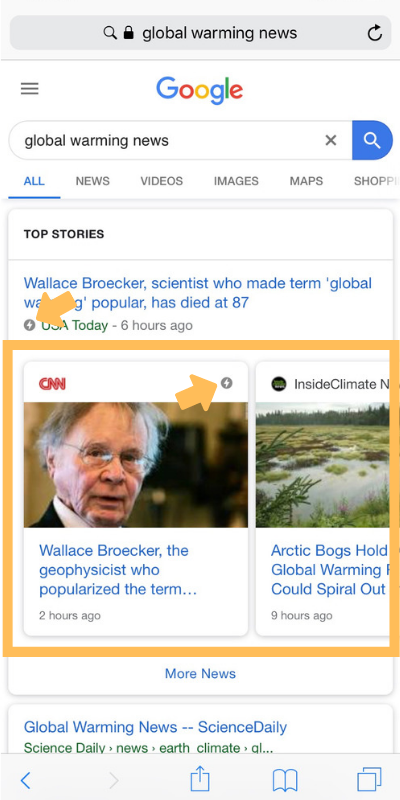
Google marks AMP results with a lightning bolt, and some SERPs include an AMP carousel.
Is AMP Right for Your Site?
Originally, the AMP solution was intended for media sites. Google wanted to help news stories come up almost instantly from the search results.
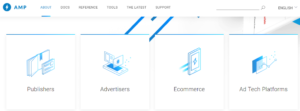
Over time, AMP has spread to other types of sites — particularly advertisers, ad-technology platforms and ecommerce sites as well as publishers.
Google recommends AMP primarily for these types of sites. (image credit: AMPproject.com)
Today, many websites can benefit from implementing AMP. Retailers and many others use AMP to serve landing pages fast. And ads in this format have a better chance of being seen.
If you’re looking for a way to make your webpages faster, AMP may be right for you.
You don’t need AMP at all for webpages that are responsive and fast enough already.Google’s Gary Illyes has said this publicly.
What are alternatives to implementing AMP?
Content Delivery Network. CDNs work by bringing the heaviest resource files on a site closer to the end user. Less distance to travel means faster delivery, so your pages display more quickly on a mobile device.
Fully implemented HTTP/2. The HTTP/2 protocol speeds up data transport on the web. So if your market has 4G or 5G internet speeds and your website is HTTP/2 enabled, then you probably don’t need AMP at all.
Progressive Web Apps technology. PWAs can make your website behave like a native mobile app. http://bit.ly/1Tq52kG We have written about these before (see What Is a Progressive Web App).
Here’s a story to illustrate that HTTP/2 statement.
One of our consulting clients, a U.S. company, converted several thousand of its webpages to AMP. Four staff members worked for five weeks to complete the project.
The result? Their AMP pages displayed slightly faster to mobile searchers. But the website’s rankings and traffic were unaffected. In hindsight, their time and effort would have been better spent creating new content.
The AMP solution makes the most sense in countries/regions with slow network speeds. For example, our Bruce Clay India office has helped implement AMP for some clients there with good results.
If you believe AMP is right for you and you’re ready to start, I’ll outline the basic first steps.
How to Implement Accelerated Mobile Pages
To implement Accelerated Mobile Pages for your website and track results, there are three basic steps:
Create the AMP page template.
Roll out the AMP page.
Track with analytics.
We’ll look at each step in detail below, and I’ll also link to AMP documentation for more info.
Once you have decided which parts of your site should be AMP’d, here are the basic steps to creating, publishing and tracking AMP pages.
1. Create the AMP Page Template
The first step in implementing AMP is creating a webpage template.
AMP integrates with many different publishing platforms. You can view the list in AMP’s Quickstart guide and choose your content management system to get more details.
You can build AMP templates from scratch. Or you can convert existing HTML pages into AMP format. The documentation gives information on all the options.
Pointers for creating an AMP template:
When creating a page template for AMP, ensure that it meets AMP specs. You can find guidance on HTML format and more at the AMP specifications page.
When styling the page, you won’t have JavaScript at your disposal. Include as many custom <amp*&rt; tags as you need to make the layout look good. That includes using responsive images, video and audio (see AMP replacements for details).
Keep it simple. After all, the point of AMP is to have a clean, stripped-down webpage.
Include some sort of navigation to your domain on each page. You can link from a logo, image or text. Because AMP pages are served from a Google cache, giving searchers a link is essential to try and keep them on your website.
If you need to keep ads on your webpages, you must migrate them. Use the amp-ad component. If you cannot use <amp-ad&rt;, then do not include ads in your AMP templates. (You can read more about advertisements on AMP here.)
Finally, validate the AMP page. Just one error or warning will keep the page out of the AMP cache. So validation is a crucial step. Check out this page for common validation errors.
2. Roll Out the AMP Pages
I like the idea of testing one or two types of pages from your website on AMP first. Ideally, include some pages that rank so that you can see if Google is serving the AMP version in mobile search results.
Depending on your site’s crawl rate, it could take a couple of days before Google finds, checks and indexes the AMP version of the page.
Let the rollout run for at least one month (longer if you can do it). As long as your pages are getting traffic, you’ll build enough data to ensure that rolling out AMP sitewide is worth it.
3. Track with Analytics
You’ll want to track the performance of your AMP pages. Since AMP analytics will be different from normal Google Analytics, read this guide to understand how it works.
You can track pages via in-house or third-party analytics. Many analytics vendors have built-in configurations for amp-analytics.
You can use amp-pixel for simple tracking and amp-analytics for everything else.
Technical recommendations as you’re setting up tracking:
Make sure to use the canonical URL and other variables to define what should be recorded. This is essential to understanding any traffic increases or decreases due to AMP.
Use the extraUrlParams attribute in amp‐analytics to add a query string parameter to the canonical URL like “type=amp” or something similar. This will make it easy to differentiate AMP pages from normal webpages in analytics, or to create a custom segment if you need to. This way, you can compare total traffic on pages before and after the AMP launch.
Side Note: How Accelerated Mobile Pages Work
If you’re wondering how AMP pages can possibly appear to load instantly, it’s because they are optimized differently than a regular webpage.
Below I’ve summarized optimizations that AMP does to reduce the amount of work a browser must do to display a page. (See the full list on the AMP Project site.)
Here’s what the AMP process can do:
Execute asynchronous JavaScript only – It doesn’t wait for big files to load.
Size resources (such as images, ads and iframes) statically – The browser knows exactly how the page will be laid out from the start.
Don’t let extensions block rendering – The page doesn’t have to wait even if there are extensions coming.
Keep third-party JavaScript out of the critical path – Things like ads are restricted to sandboxed iframes.
Allow inline CSS only – Bloated CSS files don’t delay the page.
No HTTP requests until fonts start downloading – Keeps fonts efficient.
Minimize style recalculations – All DOM reads happen up front to lay out the page.
Only run GPU-accelerated animations – The graphics processing unit handles visual animations (transform and opacity), reducing strain on the CPU.
Prioritize resource loading – The most important resources (above the fold) get downloaded first.
Load pages via prerendered content – Above-the-fold content may be available even before a user selects it, so it appears instantly on click.
Concluding Thoughts
AMP is one way that you can speed up your webpages and offer a better experience to mobile users.
If you’re ready to amp up your webpages, follow the basic steps in this article and the AMP documentation to get started. You might even be able to attend one of Google’s AMP Roadshow workshops (see worldwide schedule here).
But my advice for most sites is: reconsider.
Unless this is critical to your business, please do not implement AMP.
The time you invest converting your webpages to a different format could be better spent creating good content that will serve all of your users.
Now I want to know if you’ve implemented AMP and what tips you have for our readers. Let me know in the comments below.
If you can optimize it, you should. And images are no exception.
The images on your website represent another way to drive organic search traffic. Often overlooked, Google Image SEO can be just as important as optimizing your webpage text.
In fact, you might be surprised at just how much traffic your images are already sending to your site.
TL;DR: Google Images represents another path outside of regular web search for your audience to find your site and discover your content. Google is making significant changes to Google Images that put more emphasis on quality and relevance. To help you drive traffic from image search, we provide a list of ways to optimize images for a website.
How to SEO Images: Table of Contents
First, we’ll take a quick look at the latest news about Google Images:
Google’s goal over the past year was to make image search more useful to users. We’ve likely all had the experience of finding an image connected to a not-so-great webpage.
Now, images attached to great content can do better in Google Images. So websites have more opportunity to rank images and drive traffic with well-optimized content.
Updates to Google Image Search
Major improvements to Google Images were announced in September 2018. The image-ranking algorithm now weighs these factors more heavily:
Authority: The authority of the webpage itself is now a more important signal for ranking an image.
Context: The ranking algorithm takes into account the context of the search. Google used the example of an image search for “DIY shelving.” Results should return images within sites related to DIY projects … so the searcher can find other helpful information beyond just a picture.
Freshness: Google prioritizes fresher content. So ranking images will likely come from a site (a site in general, but we believe the actual webpage in question) that’s been updated recently. This is probably a minor signal.
Position on page: Top-ranked images will likely be central to the webpage they’re part of. (And higher up in placement on the page.) For example, a product page for a particular shoe should rank above a category page for shoes.
Google Images results pages also got a facelift:
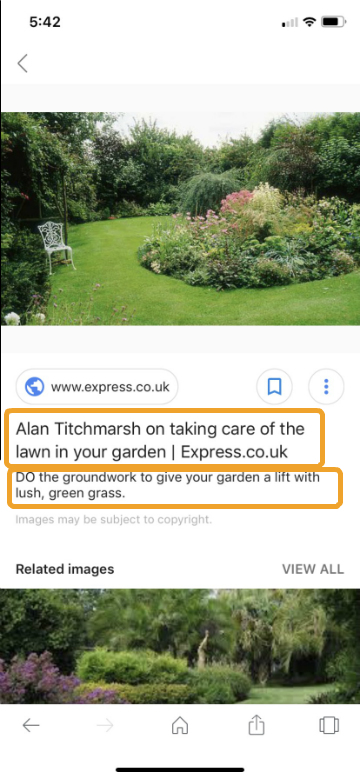
Captions: Image results now show more context. For example, searchers can read captions including the website and title of the page where the picture is published.
Related searches: Google started providing related search terms at the top of the results page. Notice the buttons, which help users narrow their search.
NOTE: We cannot reproduce this in Google SERPs today, so this may have been a temporary feature.
Related search terms across the top let searchers narrow image results.
Google Hints at More Changes to Come
Google Webmaster Trends Analyst John Mueller indicated this week that images are a “bigger topic” now.
People are running transactional and informational types of searches more frequently through Google Image search. We don’t have details yet, but Mueller’s statements (see below) make it a good bet that more UI changes are coming.
There’s nothing specific to announce from my side — it’s just a general observation that images are (once again) gaining importance overall on the web, and a reminder to think of them as a way of enabling users to find your content through Google Images / image search.
One futuristic feature that Google has already rolled out is its AI-powered Google Lens technology.
Users can now identify objects of interest within images as they look through image search results:
Lens’ AI technology analyzes images and detects objects of interest within them. If you select one of these objects, Lens will show you relevant images, many of which link to product pages so you can continue your search or buy the item you’re interested in. Using your finger on a mobile device screen, Lens will also let you “draw” on any part of an image, even if it’s not preselected by Lens, to trigger related results and dive even deeper on what’s in your image.
To show this in action, I searched for [diy outdoor grilling stations] and picked out a beverage center sitting in one of the resulting pictures. This revealed a new set of image results:
Google Lens at work: searching within a picture.
For now, the Lens feature works only in U.S. English, and only from image search in mobile browsers, not in the Google app.
But we expect Google Lens to be activated across more search platforms soon. It makes image search extremely flexible, letting users pinpoint what they want using visuals instead of words.
This new AI technology increases the population of search results. It also encourages more image-based searches.
Google increasingly understands the contents of even non-optimized images. So your images potentially have much more competition.
Image SEO becomes even more important. It’s time to optimize your images so that they can stand out.
How to Optimize Images for SEO
With all these changes to Google Images, how do you ensure you can get your share of visibility?
In this sense, Google Images search works much like regular web search. Googlebot needs to be able to crawl, index and understand what your images are about. Only then can they rank.
The latest updates to Google Images tell us that relevance and quality are more important than ever. That means providing the search engine with as much context as possible.
Here are 16 important steps to SEO images …
1. Track Your Image-based Traffic
Want to know how many visitors you get through Google Images search?
Change the search type at the top to Image. This filters the data so you can keep an eye on your traffic from image search.
Alternatively, in Google Analytics you can use the Referral report. Google Images search traffic is broken out from other search traffic. The line with the Source/Medium “google organic / images” is where you’ll find that data.
Take a baseline and watch your search traffic grow as you apply SEO to your images.
2. Create High-Quality, Original Content
Search engines want to reward high-quality pages. This applies to the information on the webpage that your image is hosted on, and to the image itself.
In its image best practices help file, Google discourages “pages where neither the images or the text are original content.”
So whenever possible, take your own photos and make your own graphics.
What if you have to use stock photos? There are a lot of ways to modify stock images to make them unique. You can add filters, crop them, overlay text, and much more.
Also remember that when you do use images from elsewhere, you must honor copyrights, license fees and/or trademark laws.
Google now includes metadata support for crediting images to the proper author and rights holder. This is visible by clicking “Image credits” where available.
3. Use Relevant Images
Choose or create images that are helpful to the overall theme of the page. That might be an infographic, a diagram, an appropriate photograph or something else.
Remember that search engines would rather rank a picture if it’s on a webpage that will satisfy the searcher’s intent with more relevant content.
4. Have a Proper File Format
Use an image file format that search engines can index. The three most common are:
PNG, good for screenshots and images with graphics or text. Depending on image complexity, PNGs may create larger files than the other formats. The PNG format uses lossless compression, which means the quality is preserved.
JPEG, good for most photographs. JPEGs create smaller files by using lossy compression, which means there will be a loss of image quality every time you save this file format.
GIF to create animations. GIFs use lossless compression, which means the quality remains the same.
Another type that’s becoming popular is:
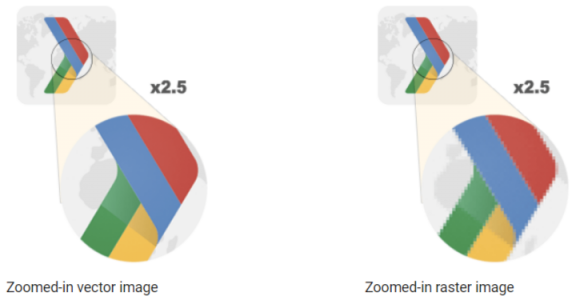
SVG. This is a scalable vector format. As opposed to the raster types mentioned above, vector graphics can be extremely small files that don’t lose quality no matter how much they’re enlarged.
Notice how the vector does not pixelate as it’s enlarged. (Image credit: Google)
SVG isn’t right for photos or complex images, but it works well for simple graphics with geometric shapes, such as a logo.
Now, next-generation image formats exist. These formats have better compression, are higher quality, load faster, and take less cellular data:
JPEG 2000
JPEG-XR
WebP
WebP has been gaining attention lately. It’s possible to convert existing JPEG and PNG files to WebP.
WebP is a method of lossy and lossless compression that can be used on a large variety of photographic, translucent and graphical images found on the web. The degree of lossy compression is adjustable so a user can choose the trade-off between file size and image quality. WebP typically achieves an average of 30% more compression than JPEG and JPEG 2000, without loss of image quality …
5. Optimize Your Images
There’s no single best way to optimize images. For each one, you need to find the optimal balance between minimum file size and maximum quality. Here are must-dos:
Resize and crop images to be no larger (in dimensions) than they’ll be displayed. With raster-style images (the most common type on the web), you might need to save several versions at various resolutions to work for different users.
Choose the most efficient file format per image (see my last point). It’s OK to mix different types of images on the same webpage.
Use compression to reduce file size. When saving a JPEG, for example, slide the quality bar down as far as you can without losing visual quality. With an SVG file, Google suggests you minify it by running it through a tool like svgo.
Consider replacing a picture with a different technology altogether. CSS effects can produce shadows, gradients, and more. Web fonts let you show text in beautiful typefaces, which actually improves your page’s usability and crawlability compared to an image.
Accessibility for all users is important. That’s why adding alt attributes to images is part of our always up-to-date SEO checklist.
Alt text describes what the image is about to the visually impaired who use screen readers. It also can give search engines valuable information about the image’s contents.
Only when appropriate, use a relevant keyword you’re targeting to describe the image.
Remember that with linked images, search engines treat the alt attribute as the link anchor text. For example, if you have a question mark icon linking users to your help system, include alt=”Help” in your image tag.
7. Make Use of the Image Title
There’s an optional title attribute that you can give to each image. Some tests have shown that Google does index image titles.
8. Create an Image Caption
Add a little extra context by describing the image in a caption. You can also give the image source here, if appropriate.
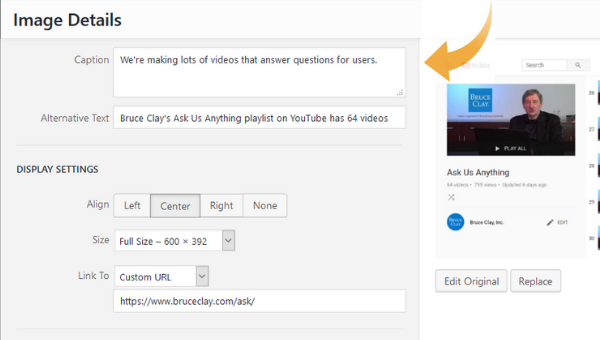
In the WordPress editor, adding a caption is simple to do.
9. Use a Descriptive File Name
This is an often-overlooked step. But I have a quick remedy.
When you save your image file, accurately describe the photo in a few words or less. For example, ugly-christmas-sweater is a better file name than IMG01534.
In a webinar with Google’s Gary Illyes at Search Engine Journal, he pointed out that it’s just not feasible for large sites to have accurate file names for all their images (Pinterest, for example).
Illyes says this is more of a nice to have than a requirement for ranking. But, Illyes did explain when the file name can matter:
“I would imagine that it would be something that, all signals considered equal in case of your and your competitor’s images, if you have a better file name, then perhaps you might get ranked better with your image …”
10. Implement Structured Data If Possible
Google Images supports structured data markup for a product, video and recipe.
When you add structured data to your webpage’s HTML, your image results can be richer. Extra bits of information can show along with the image. And that can encourage more clicks and visitors to your site.
Structured data can help Google display things like the price and availability of a product.
11. Consider Image Placement on the Page
Google says in its image best practices page (linked to earlier) that “when it makes sense, consider placing the most important image near the top of the page.”
But in the SEJ webinar, Illyes said that you can put an image “pretty much anywhere on the page” and it can be picked up and shown in Google Images if it’s relevant to the query.
12. Analyze the Content around the Image
Consider the body text around the image. Does it give context to what the reader is looking at?
In the SEJ webinar, Illyes called the content around the image (on the page or in a caption) “critical” to understanding the image.
A$: The big one for me is to get the accessibility right with the alt text, then build around that with good captions and other related text near the image, Then add in a good file name and the image title. #SEOChat
Google shows relevant information about the webpage (where the image appears) in Google Images results.
So don’t skip your metadata, including title and meta description. They give the user and search engine more context — just like in the regular search results.
Metadata (page title and description) can now show up in image search results.
There’s no guarantee that Google will use your metadata word for word. But they’re definitely part of its information processing. Google’s image best practices says:
Google Images automatically generates a title and snippet to best explain each result and how it relates to the user query. … We use a number of different sources for this information, including descriptive information in the title, and meta tags for each page.
14. Ensure Fast Load Time
Performance is a huge consideration for SEO in general.
Large images can drag down page load time. Here are tips to avoid that:
Make images responsive. Basically, that means they automatically change size to fit the user’s device. You can read more about responsive images here and in the “responsive images” section of the image best practices page.
Specify how much space the image is going to take up. Knowing this enables a browser to load the surrounding page content while the image file is being requested. There are a number of ways to do this, including: with a
<div> container; in the CSS code; or with height and width attributes in the <img> tag.
Consider lazy loading, which Google recommends as a way to combat slowness.
15. Make Sure Images Are Discoverable
Make sure that search engines can access the images on your site. When they can’t, the robots.txt file is often to blame.
Google Search Console’s “Inspect URL” feature can help you test this. You can also use Google’s mobile-friendly test tool to discover how your pages, including images, work for mobile.
As an optional step, you can create an image sitemap that lists the image files on your website. This can help Google discover them.
You can create a separate XML sitemap for images. (Learn more about that in our creating a sitemap tutorial.)
In the webinar at SEJ, Gary Illyes said that image sitemaps “help enormously” with the image discovery process.
I recommend including only original images, and not all site images, in your sitemap. Listing images from any external source may be a waste of the search engine’s processing budget. Google will find them on your pages anyhow. Taking crawl time, as if they have changed, is not needed.
If an image is unique to your site and revised or new, then include it in your image sitemap. If it was already crawled and not altered, a recrawl is simply wasting time.
Summary
The changes to Google Images are positive for users and for SEOs. Google has once again elevated the standards for websites to create quality content.
Image SEO will evolve — but many of the basics still hold true. The goal is to create the best experience for users visiting your site.
Present original, useful content with high-quality, relevant images.
Make a fast website that doesn’t make users wait for pages to load.
Optimize your images so that search engines can index them properly.
Apply the techniques in this article to optimize images. You may get a leg up on the competition and more eyeballs on your webpages.
For a term that’s been around since 2001, there are still a great many people asking “what is SEM?”
It would seem that this should be an easy question to answer. After all, SEM has had nearly two decades to settle its definition. And yet, the question is still asked.
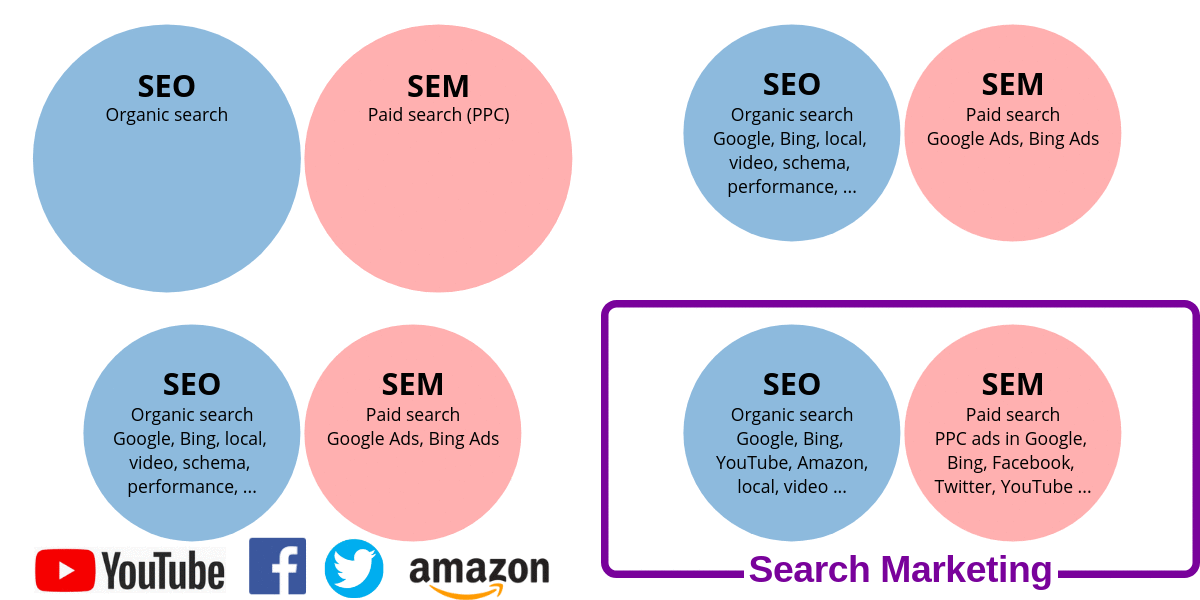
The term search engine marketing was popularized in 2001 by Danny Sullivan, then editor-in-chief of Search Engine Land. Danny wanted SEM to describe all search engine marketing initiatives, both organic and paid. Even today, you’ll occasionally see SEM used as a one-size-fits-all term for any marketing involving search engines.
Industry professionals and publications also throw around the term search marketing with ease. This might sound like the same thing, but it isn’t.
And of course, there is also the venerable search engine optimization (SEO) to consider. SEM, Search Marketing, SEO …
With all these terms, no wonder there is still confusion.
What Is SEM?
SEM stands for search engine marketing. As it is commonly used today, SEM describes only the money-backed portion of marketing through a search engine.
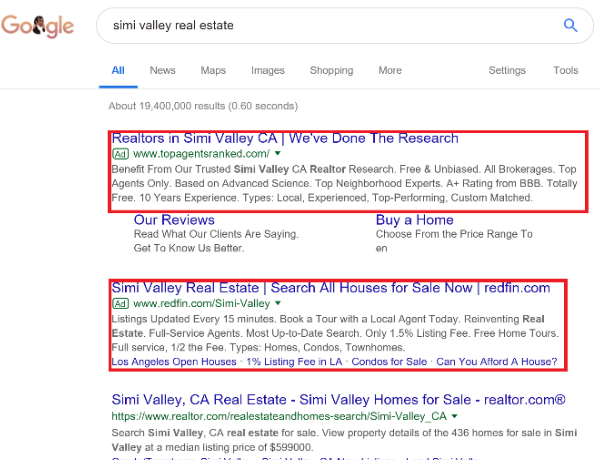
SEM involves buying PPC (pay-per-click) ads that display on a search engine results page (SERP for short). Ads may be placed through Google Ads, Bing Ads, or other search engines.
You know you’re doing SEM if …
When you give a search engine money to appear on their SERP, you’re doing SEM.
Common SEM concerns are cost per click and cost per acquisition (CPC and CPA). These indicate how much money is being spent on search advertising, and whether the return is worth it.
Some other important terms used in the world of SEM include:
Retargeting
Geotargeting
Dayparting
Demographic targeting
Mobile targeting
and many more
SEM is the area where search engines make most of their money. As a result, paid search advertising takes precision so that ad dollars aren’t wasted. That makes SEM a marketing specialty of rapid change, one of the more exciting frontiers in search.
Does “Search Engine Marketing” Include SEO?
The short answer is no. SEM and SEO are now two different roles.
The longer answer is: “Not anymore, but it’s complicated.”
When Danny Sullivan created SEM back in 2001, he used it as a catch-all to describe all efforts that encouraged website traffic from search engine results pages — including paid and organic search initiatives. According to Danny then, both SEO and PPC folks worked in search engine marketing. Simple. Clear. This definition was accepted by the industry at the time.
Yet in the 18 years since, the common understanding of the term SEM has shifted.
What caused this change? A few possible causes include Wikipedia’s page on SEM being entirely skewed toward paid efforts; Yahoo’s push of their PPC solution; and the general alphabet soup of confusing marketing acronyms. (For a detailed history of the term SEM, see Danny’s recap from 2010.)
Whatever the reason, the answer to the question “what is SEM” has definitively changed. SEM now means paid.
Today when you head to Search Engine Land, you’ll find SEM defined this way:
“SEM (Search Engine Marketing) is the process of gaining website traffic by purchasing ads on search engines.”
That clearly includes pay per click, local search ads, product listing ads, and all advertising efforts with regard to search engines.
What about “Search Marketing”?
In place of SEM as an umbrella term, the industry coined the phrase “search marketing.”
Again looking at SEL, the definition of search marketing is:
“Search marketing is the process of gaining traffic and visibility from search engines through both paid and unpaid efforts.”
You may recognize that definition as Danny’s original meaning for SEM.
Defining SEM for the Future
Raise your hand if you think “SEM” is done evolving. Anyone?
I see signs that SEM will expand in meaning in the future.
In 2019, search marketing conferences are including more than just search engine advertising within the track called “SEM.”
Exhibit A: SMX West
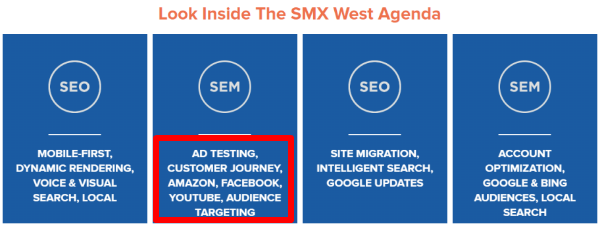
The upcoming SMX West conference divides their tracks into SEO (organic) and SEM (paid). So that division is clear. You can expect to learn about organic ranking in the SEO track. In the SEM track, sessions focus on PPC topics like improving a Google Ads campaign.
What’s striking is the addition of advertising platforms besides Google and Bing. Sessions in the SEM track also talk about:
Facebook
YouTube
Twitter
Amazon
Exhibit B: Pubcon Las Vegas
I wondered if SMX was just an exception here. So I looked at another big marketing event, Pubcon.
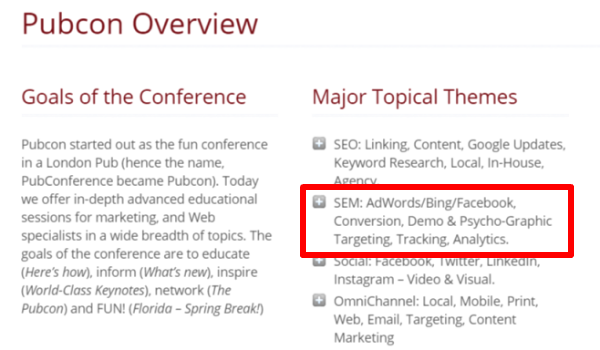
It turns out that Pubcon’s “SEM” theme also covers more than just traditional search engines. Facebook advertising makes the cut. And there could be others that just aren’t mentioned in the summary description.
At least in the context of conferences, SEM can mean any variety of online ad placement. (This is somewhat counterintuitive.)
No longer are sessions merely focused on Google and Bing. They cover non-search outlets that accept ads, too.
Will this lead to another shift in the definition of SEM? Or will another term entirely take over to encapsulate the always evolving and always exciting world of digital marketing?
The scope of what we do as search marketers has grown. So should our definitions.
Search marketing, in my view, now has to include more than just organic SEO and paid SEM in the major search engines. It also involves video, server issues, site performance, voice, YouTube, Amazon, and the list goes on.
One thing is certain — the search industry continues to develop. So too will the language we use to describe it.
If you find yourself asking what is SEM 10 years from now and discover the answer has changed once again, at least you won’t be surprised.
WordPress is a simple-to-use content management system that’s also free. It offers everyone from solo bloggers to the world’s leading brands a platform to create custom and powerful websites. No wonder almost a third of all websites run on WP!
Still, WordPress was made for users, not for Google or SEOs. That’s why SEO plugins exist — to plug in the holes with added functionality that helps your content be indexed by search engines and found by searchers.
As a marketer, content creator or analyst, how do you choose the best SEO plugin for your sites? Here, we’ll take a look at six plugins, their many features, and finally a price comparison chart so that you can compare them:
Plugins often come in both free and premium versions; the premium versions unlock more functionality and service. I’ll address both versions where appropriate.
Plugin No. 6 is our soon-to-be-launched WP plugin, Bruce Clay SEO, which fills in the gaps left by other plugins on this list (see our list of what your SEO plugin is missing).
1. Yoast SEO
Yoast SEO is the most popular SEO plugin. It’s easy to use, driven by a simple user interface. The majority of people use the free version.
Here’s what the free version offers (from its plugin page):
XML sitemaps functionality at the push of a button
Full control over site breadcrumbs
Set canonical URLs to avoid duplicate content
Title and meta description templates
Content & SEO analysis to write SEO-friendly text
Snippet preview to show how your post or page will look in the search results (also on mobile)
Cornerstone content and internal linking features help optimize your site structure
Integrates with Google Search Console
Manage SEO roles to give people access to specific sections of the Yoast SEO plugin
Bulk editor to make large-scale edits to a site
Strengths: As a leading plugin, it’s driven by market awareness and brand presence. It’s easy to use. The free version is typically enough for most users. Weaknesses: It’s built for everyone and no one industry in particular. As a result, some users feel the SEO recommendations are too generic. In addition, even though it’s fairly simple to use, the features may seem overwhelming to beginners. Active installations: 5+ million Rating on WordPress: 5 stars
Yoast offers a premium version for annual fees ranging from $89 for one site up to $756.50 for 15 sites. Additional offerings of the premium version include:
News SEO, video SEO, local SEO and WooCommerce SEO extensions
Premium users get one year free access to a support team
Insights tool shows you what your text is focusing on so you can keep your article in line with your keywords
Multiple focus keywords to optimize your article for synonyms and related keywords
Automatic internal linking suggestions of posts to link to
Social previews to help manage the way a page looks when shared on social networks like Facebook and Twitter
Redirect manager to address redirect errors from Google Search Console, deleted pages and changed URLs
2. All-In-One SEO Pack
All-In-One SEO Pack offers entry-level features to assist with SEO for beginners. It also has advanced features and an API for developers.
Here’s what the free plugin offers (from its plugin page):
XML sitemap support
Image XML sitemap submitted to Google and Bing
Google AMP support
Google Analytics support
Support for SEO on custom post types
Advanced canonical URLs
Redirect attachment pages to parent post
Automatically notifies search engines about changes to your site
Built-in API so other plugins/themes can access and extend functionality
Provides SEO integration for e-commerce sites, including WooCommerce
Nonce Security built in
Automatically optimizes titlesfor search engines
Generatesmeta tags automatically
Avoids typical duplicate content found on WordPress blogs
For advanced users, fine-tune everything to optimize SEO
Override any title and set any meta description and keywords
Compatible with many other plugins
Translated into 57 languages
PHP 7 100 percent compatible
Strengths: As a leading plugin, it’s driven by market awareness and brand presence. Some users appreciate that you can turn off features you won’t need to use. Weaknesses: This plugin is built for everyone and no one industry in particular. Some people comment that the user interface is not as friendly as they would like it to be, and say that for true beginners, it might be too complex to understand. Active installations: 2+ million Rating on WordPress: 4.5 stars
All In One SEO Pack offers a pro version for annual fees ranging from $97 for an individual to $699 for an agency. Additional offerings of the pro version include:
Advanced support for WooCommerce
SEO for categories, tags and custom taxonomies
Video SEO module
Access to video screencasts
Access to premium support forums
Access to knowledge center
3. SEO Ultimate
SEO Ultimate has the most robust feature set of the all-in-one-type WordPress SEO plugins. Check out its plugin page for more details on each of the following features.
Here’s what the free plugin offers (from its plugin page):
Title tag rewriter and meta description editor
Deeplink juggernaut
Open graph integrator
Rich snippet creator
Author highlighter
Link mask generator
Canonicalizer
404 monitor
Permalink tweaker
Meta robot tags editor
SEO ultimate widgets
Plugin settings manager
SEO/SEM-enhancing custom HTML
.htaccess editor and the robots.txt editor
Textboxes to the end of your posts/pages that contain automatically generated link HTML
Meta keywords for posts, pages, categories, tags, terms and the homepage auto-generated and editable
“Read more” links include the posts’ keyword-rich titles in the anchor text
Rel=”nofollow” settings when migrating from other SEO plugins
Dashboard of green/yellow/red indicators for SEO-friendliness
Buttons that make it easy for visitors to share content on social
Strengths: This plugin has a nice set of robust SEO features. Also, the ability to import and export data from other sources, including other SEO plugins, is something users find handy. Weaknesses: The free version is no longer being updated for WordPress. Because the tool is advanced, it requires training to get the most out of it. Active installations: 100,000+ Rating on WordPress: 4 stars
SEO Ultimate+ costs from $49 for one site to $249 for 20 sites annually. $500 will get you unlimited sites. Additional offerings of SEO Ultimate+ include:
Structured data, schema and rich snippets
Global canonical manager
Alt attribute mass editor for images
Improved open graph options for social networks
The code inserter+ module
HTML and XML Sitemaps
Rel previous and next pagination optimization
SEO data transporter
4. SEO Squirrly
SEO Squirrly is an SEO plugin that aims to be an SEO advisor.
Here’s what the free plugin offers (from its plugin page – check it out for more in-depth information on each feature):
Keyword research
SEO Live Assistant
Audit Suite
Briefcase, keyword strategy assistant
Twitter Cards
Facebook Open Graph support for both images and video
LinkedIn titles, images and description for better sharing
Rich Pins for Pinterest
Snippet preview
Customize meta title and description
Sitemap
Blog feeds
SEO settings
Performance analytics
Works with multisites
Blogging assistant to help keep readers on the page longer
Strengths: Robust features. Works well with the WooCommerce e-commerce plugin. Weaknesses: The plugin is free if you do less than five posts per month on one site; otherwise, you need to upgrade to the paid version. Some features that used to be included free are now separate paid products, such as search engine rank tracking. Active Installations: 30,000+ Rating on WordPress: 4.5 stars
SEO Squirrly offers a premium version for monthly fees of $29.99 for pro and $71.99 for business. Additional offerings of the premium version include:
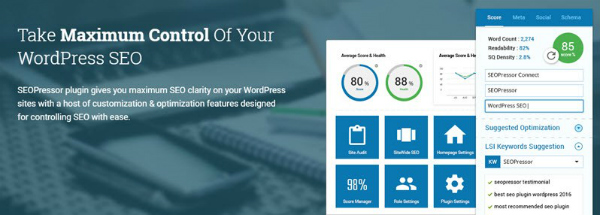
SEOPressor Connect is the most advanced of these SEO plugins, in my opinion.
This is a paid plugin ($9 per month), and just some of the things it offers include:
Multiple keywords analysis
XML Sitemap generator
SEOpressor over-optimization check
Canonical link
Progressive LSI keywords engine
301 URL redirect
SemantiQ density tells you if the content is related to keywords
On-page robot rules
Schema and Dublin Core markup support
SEOpressor site audit
SEOpressor local SEO
SEO trends
Google Knowledge Graph help
SEOpressor score manager for optimization
Optimize the homepage
SEOpressor smart link manager
On-page meta settings
Sitewide link policy
Facebook Open Graph customization
Automatic smart linking
Twitter Card customization
SEOpressor role settings
Strengths: Can be used on multiple domains and works well with other SEO plugins. Many people find it easy to use with a strong user interface. Weaknesses: Computes its own scores and tracks them over time, but lacks a connection to performance analytics data or search results. This means that the trends could be misleading since they don’t reflect how your content is actually performing in the search engines. Active installs & ratings: The plugin does not appear in WordPress’s plugin directory, so this data is not available.
6. Bruce Clay SEO for WordPress (now in beta)
While many of the above plugins compete with each other, our approach is different. Bruce Clay SEO WP is meant to supplement and extend the free versions with powerful needed features.
We gathered input from industry practitioners on what they wanted to see in an SEO plugin. Then we designed our plugin not to replace the plugins you may be using, but to provide much more data than is available today.
Of course, our plugin provides capabilities similar to others as well, but that is just in case you’re not using any other SEO plugins.
What makes this plugin unique: It enriches your publishing workspace with SEO insights based on real-time search results and analytics. In other words, you can see beyond the page you’re working on, without leaving WordPress. It’s the integration with our SEOToolSet and Google Search Console/Analytics that makes this possible.
The Bruce Clay SEO plugin works like software as a service (SaaS). Rather than a static one-size-fits-all checklist approach to optimizing a page or post, our plugin uses a live connection with the SEOToolSet software to analyze your keywords and competition in real time.
As a result, the optimization recommendations you see are customized. So your page can better compete in its specific ranking environment.
There’s no free version, but it’s priced affordably at $24.95/month per domain. (Try it! The first week is free — then you can decide if you want to keep it.)
As a bonus, plugin subscribers can also use the SEOToolSet itself. Data is shared between the plugin in WordPress and the user’s SEOToolSet account. Those who want to can run domain ranking reports and take advantage of many other external tools.
Bruce Clay SEO features are powered by patent-pending technology. WordPress users can:
Optimize a page or post for more than one keyword.
See clearly where keywords appear in the content through color coding.
Know which pages and posts are your top performers.
Identify problems with mobile usability and performance.
Check the site for duplicate content.
Evaluate top-ranked pages for your keywords in real-time.
Get recommendations for keyword usage in tags and content (even word count) based upon competitors.
Find out how much content has been written on your site per keyword.
See how each of your pages or posts is performing, using integrated Google Analytics data.
View top-performing posts or pages per author/contributor to the website as measured by visitors over a selectable period of time.
Find out when there is a possibility of duplicate content, like meta information or the content on a page.
Discover the page or post’s readability and compare it to keyword competitors.
Use along with Yoast, if desired. Compatibility is built in.











 John
John 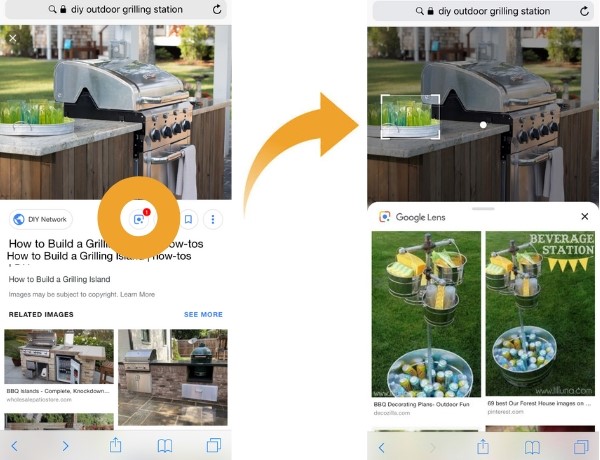







 is meant to supplement and extend the free versions with powerful needed features.